
Add Job
Add Job lets you drop a job straight into any queue, one job or thousands of copies, without writing any code.
Where: open /add-job from the sidebar.
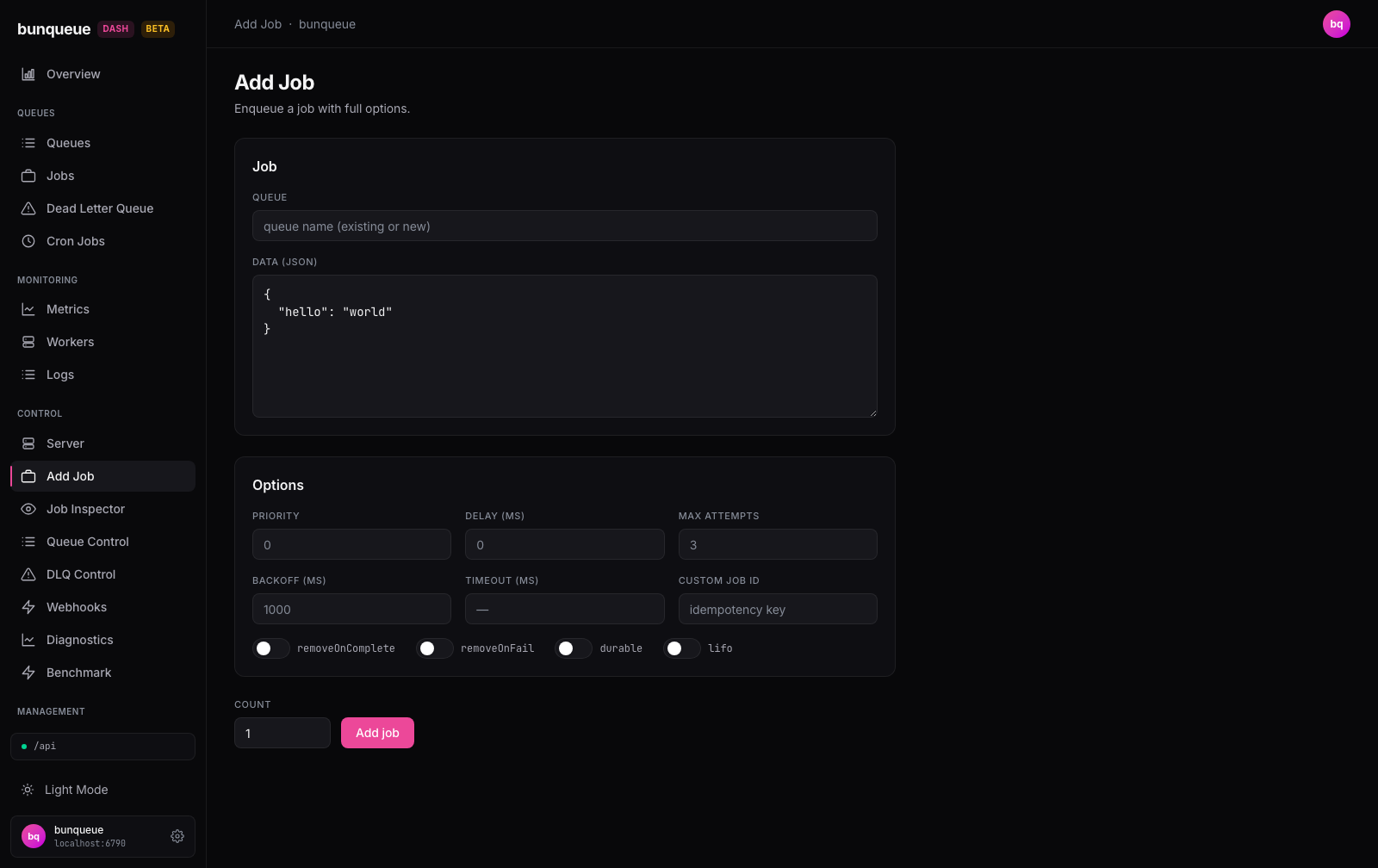
What you'll see
The page is a single form with two cards and a submit row, no live counters or tables, just the fields you fill in.
Job
| Element | What it's for |
|---|---|
| Queue | The queue to add the job to. Start typing to pick from your existing queues, or enter a brand-new name to create one. |
| Data (JSON) | The job's payload, written as JSON. Comes pre-filled with a small example you can replace. |
Options, every field is optional. Leave a box empty and the server's default (shown as the placeholder) applies.
| Element | What it's for |
|---|---|
| Priority / Group priority | Order in the queue. With a Group ID it becomes the 2.9.3 intra-group priority (0 is highest, maximum 2,097,151). |
| Delay (ms) | Hold the job for this long before it can run. |
| Max attempts | How many tries before the job is exhausted and sent to the dead-letter queue. |
| Backoff (ms) | Wait time between retries. |
| Timeout (ms) | Maximum time a single attempt may run. Blank means no limit. |
| Custom job ID | Your own ID for the job. Reusing an ID prevents duplicates. |
| removeOnComplete | Delete the job record once it finishes successfully. |
| removeOnFail | Delete the job record once it fails for good. |
| durable | Keep the job persisted. |
| lifo | Add to the front of the queue instead of the back. |
| Tags / Group ID / Depends on / Unique key | Group, dependency and deduplication metadata for advanced workflows. |
| Group max size | Atomic cap on pending jobs in the selected group. Requires a Group ID; an enqueue beyond the cap is rejected. |
| Job name | The first-class worker routing name. It is separate from the JSON payload and defaults to default. |
| Repeat policy (JSON) | The safe v2.9.3 interval form: {"every":60000,"limit":10}. Create cron-expression schedules in Cron Manager. |
Submit row
| Element | What it's for |
|---|---|
| Count | How many copies of this job to add. Defaults to 1. |
| Add job | Submits the form. A message appears next to it: green with the new job ID on success, red if something went wrong. |
TIP
The four toggles (removeOnComplete, removeOnFail, durable, lifo) all start off. Leaving one off means "use the server default", it isn't forced to false.
What you can do
Add one job. Pick a queue, edit the JSON, adjust any options, and press Add job. On success the accepted ID or distinct-ID count is shown.
Add many jobs at once. Set Count above 1 to enqueue that many copies of the same job in one go. The result line tells you how many were created.
Create a new queue on the fly. Type a queue name that doesn't exist yet, the queue is created the moment you add the first job.
Fine-tune with options. Fill in any option field to override its default; leave it blank to keep the default.
Nothing is sent until you press Add job, and there's no confirmation step, the job goes in immediately. Before it sends, a few checks run:
- Queue must not be empty.
- Data must be valid JSON, any error shows in red under the editor.
- Count must be a whole number of at least 1.
- Count can be at most 10,000.
- Repeat policy, when present, must contain a positive whole-number
everyvalue and may contain a positive whole-numberlimit. No other keys are accepted by this dashboard.
WARNING
Do not send repeat.pattern through the v2.9.3 push route. That release stores the pattern but continues the repeat with every ?? 0, which can create an immediate hot loop instead of following the cron expression. Use Cron Manager for cron-expression schedules; it uses the dedicated /crons API.
WARNING
Typing a queue name that doesn't exist creates a brand-new queue. Double-check the name before a large bulk add, or a typo will scatter jobs into an unintended queue.
Good to know
- Name and ID are separate. Job name classifies the work and defaults to
default; the optional Custom job ID controls its caller-selected identity. User payload remains in JSON data. - Group admission stays atomic. Bunqueue 2.9.3's single HTTP add route does not forward
groupMaxSize. When Group max size is filled, the Dashboard transparently sends a one-entry bulk request, which does preserve the field; it never silently submits an uncapped group job. - Count copies are identical. Every copy shares the exact same data and options. For different payloads, use Bulk import, which accepts JSON array/NDJSON job specs and preserves the operator-safe v2.9.3 fields: structured backoff, tags/groups/dependencies, interval repeat, dedup, stall timeout, stack-trace limit and timestamp, in addition to the single-add options.
- The complete bulk request is bounded. Bunqueue limits data per job but not data multiplied by Count. The dashboard measures the exact translated JSON envelope without constructing it and refuses submissions above 64 MiB, so a valid large payload cannot exhaust the browser by being copied thousands of times.
- Bulk plus a custom ID collapses into one job. If you set Count above 1 and a Custom job ID, every copy shares that ID, so the server dedupes them into a single job. The result line honestly reports how many distinct jobs were actually created, often just one. See Known issues.
- Fire-and-forget. This page reports the new job ID but doesn't track the job afterward. Use the Job Inspector or the Jobs page to watch it run.
- Rare bulk-only options live in Bulk import. The friendly form exposes the single-push surface; spec mode additionally accepts
stallTimeout,dedup,stackTraceLimitandtimestamp. It rejectsparentId,childrenIdsand the dependency-failure flags because those belong to atomic Flow creation. It also rejects Bunqueue's persisted compatibility fieldskeepLogs,sizeLimit,debounceIdanddebounceTtl, which are not enforceable enqueue controls in v2.9.3. - Autocomplete needs a connection. Queue suggestions come from your live server. If it's unreachable the field still works as free text, you just won't get suggestions, and submitting shows the error in the result line.
Under the hood (for developers)
- Uses the
bqclient throughout (neverapi.ts). - Queue autocomplete:
GET /dashboard/queues, polled every 30 s. - Single add (Count = 1 without Group max size):
POST /queues/:q/jobs. - Bulk add (Count > 1 or Group max size is set):
POST /queues/:q/jobs/bulkwith N copies of the body, after enforcing the 64 MiB aggregate UTF-8 envelope budget. - The client treats an HTTP 200 carrying
{ ok: false }as an error, so logical failures surface in the red result line instead of being swallowed.