
Server Control
Server Control is where you start, stop, and restart the bunqueue server, set how it launches, and watch its logs live.
Where: open /server from the sidebar.
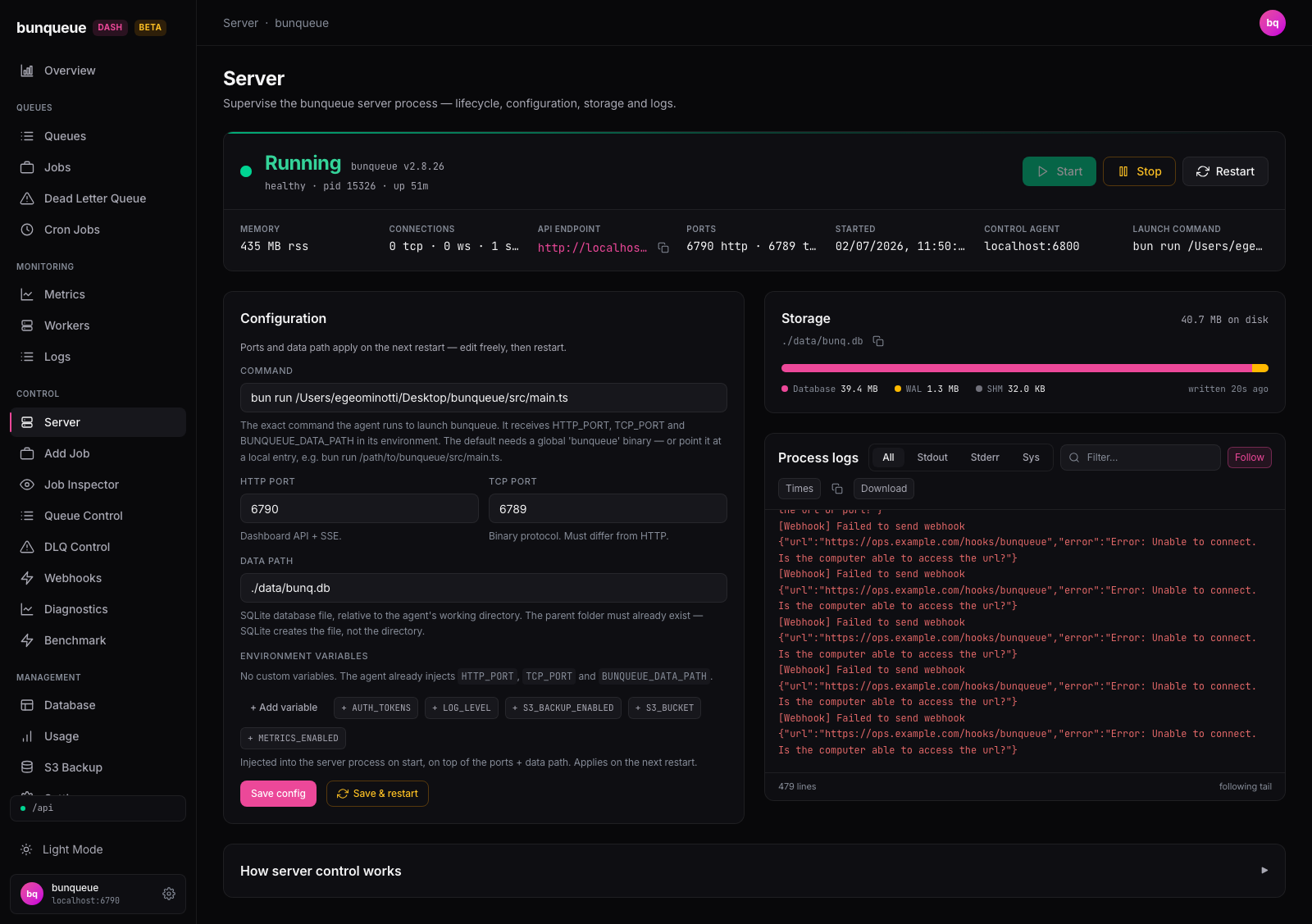
What you'll see
The page has four parts, top to bottom: a Status console at the top, a Configuration card, a Storage panel, and a live Process logs tail.
The status console is the focal point, a mission-control readout of the running process. A colored dot tells you the state at a glance: green for running, amber while starting or stopping, red when stopped. Below it sits a cluster of vitals:
| Element | What it tells you |
|---|---|
| State | Running, Starting, Stopping, or Stopped. A pulsing ring appears only when the server is running and healthy. |
| Version | The bunqueue version the running server reports. |
| Health & uptime | While running: healthy (or waiting for health…), the process id, and a live-ticking uptime. |
| Memory | Current memory use in MB. Hover for heap detail. Shows , while stopped. |
| Connections | Live TCP, WebSocket, and SSE connection counts. Shows , while stopped. |
| API endpoint | The server's address. While running it's a clickable link to its health page, with a copy button. |
| Ports | The HTTP and TCP ports in use. |
| Started | When the process started (shown only while running). |
| Control agent | The address of the local agent that manages the process. |
| Launch command | The exact command the process was started with. |
The Configuration card holds the settings the server will launch with next time you start or restart it:
| Element | What it tells you |
|---|---|
| Command | The command the agent runs to launch bunqueue (default bunx bunqueue@2.9.4 start). |
| HTTP port | The dashboard API and live-update port (1 to 65535). |
| TCP port | The binary-protocol port. Must differ from the HTTP port. |
| Data path | Where the SQLite database file lives. |
| Environment variables | A key/value editor for any extra settings you want to pass in. |
The Storage panel shows the SQLite database's footprint on disk as one proportional bar: the main Database file plus its WAL and SHM sidecars, with the total size, the file path (copyable), and when it was last written. Before the server has ever run, it shows a placeholder explaining the file appears after the first start.
Process logs is a live tail of the server's output. Error lines show in red, agent messages in blue, normal output in muted gray. A footer shows the line count and whether the view is following the tail or paused.
What you can do
Attach-only mode
Set BUNQUEUE_MANAGED=0 when another supervisor owns the Bunqueue process. The status console is then labeled External and reflects the agent's authenticated BUNQUEUE_URL/health probe. A reachable degraded response is distinguished from an unreachable endpoint. Start, Stop, Restart, launch configuration, local storage statistics and child-process logs are hidden because they do not describe the external process; direct lifecycle/config requests also fail with HTTP 409. Backup restore is likewise unavailable: it requires proof that the database owner is stopped, which the attach-only agent cannot obtain from the supervisor.
Unset the variable or set it to 1 to use the managed controls documented below.
Start the server. Click Start and the agent launches bunqueue with your saved configuration.
Stop the server. Click Stop to shut it down.
WARNING
Stop asks you to confirm ("Stop the bunqueue server?") because it terminates the running process.
Restart the server. Click Restart to stop and start it again, the fastest way to apply configuration changes. This also asks for confirmation.
Edit and save the launch configuration:
- Change the command, ports, data path, or environment variables in the Configuration card.
- Click Save config to store your changes for the next start (a "Saved" note flashes for a moment).
- To apply them right away instead, click Save & restart, this saves and restarts in one step. It confirms first and only appears while the server is running.
Manage environment variables. Add a variable with a key and value, remove one with the ✕ button, or click a preset chip (like LOG_LEVEL or AUTH_TOKENS) to add a common setting fast. These stay in the form until you save.
Work with the logs. Filter by stream (all / stdout / stderr / sys), search the text, toggle Follow to auto-scroll (or turn it off to read back without being pulled to the bottom), toggle Times to show timestamps, Copy what's shown, or Download it as a .log file.
Ports are checked before anything is saved
Both Save config and Save & restart validate your ports first: each must be a whole number from 1 to 65535, and the HTTP port must differ from the TCP port. If a port is invalid, nothing is saved and an error appears in red next to the buttons.
Good to know
- Configuration never applies in place. Changes to the command, ports, or data path only take effect on the next start or restart, the running server keeps what it launched with. Use Save & restart to apply immediately. When your saved config is ahead of the running one, a "Restart to apply changes" hint appears next to the buttons.
- The default command resolves Bunqueue 2.9.4 through
bunx. For offline or source-checkout workflows, point Command at a local entry instead, for examplebun run /path/to/bunqueue/src/main.ts. - PostgreSQL multi-broker mode: add
BUNQUEUE_STORAGE_DRIVER=postgresandBUNQUEUE_POSTGRES_URL=…under Environment variables, plus the sameBUNQUEUE_POSTGRES_NAMESPACEon every member. Create one Dashboard profile and paired control agent per broker; Fleet groups members by the credential-freehost:port/databasetarget and namespace and can operate each lifecycle independently. Keep Data path on a durable location if you use the Dashboard Workflow Engine: the agent retains it for Workflow state but removes every SQLite path alias from the PostgreSQL broker environment. Database inspection and S3 snapshots remain SQLite-only and return a clear unavailable response while PostgreSQL is active. Bunqueue 2.9.3 uses PostgreSQL schema 20 (the published 2.9.2 package used schema 19): upgrade every broker sharing the namespace together; an older broker cannot join after migration to schema 20. - SQLite 2.9.3 migration: make a copy of the database before the first start. Bunqueue upgrades it to schema 37 before binding the server and resumes checkpointed migrations after a restart. Do not try to downgrade a database after a partial or completed migration.
- Completed history has two separate controls.
BUNQUEUE_MAX_COMPLETED_JOBScaps the hot in-memory/recovery snapshot; it no longer deletes durable rows. SetBUNQUEUE_COMPLETED_RETENTION_MSonly when durable completed jobs should expire by age. Both are available as Environment-variable presets in Server Control and take effect on restart. - The data path's folder must already exist. The server creates the database file but not its parent folder. A start that fails with a "cannot open" error usually means the directory isn't there yet, create it, or pick a path whose folder already exists.
- Logs don't keep forever. Only the most recent ~800 lines are held, so older output scrolls off. Use Download to save a copy you want to keep.
- When the agent can't be reached, the page tells you plainly. If it was never reachable, you'll see how to start it. If it stops responding after working, an amber banner shows the last known state and the Start/Stop/Restart buttons are disabled until it answers again, this is intentional, so the page never claims a dead server is "healthy." It reconnects on its own once the agent is back; no reload needed. See Known issues.
- Memory and Connections need a running server. Those vitals come from the live server, so they read
,whenever it's stopped.
Under the hood (for developers)
- Lifecycle, configuration, and logs all go through the local control agent (
bq.control.*, defaulthttp://localhost:6800):GET /control/statusis the primary poll,POST /control/start|stop|restartdrive the process,PUT /control/configpersists config to the agent's private settings file, andGET /control/logsfeeds the log tail. - The live Memory and Connections vitals come from the bunqueue server's own
GET /health(viabq.health(), called withstrict:false) and are polled only while the process is running. - Polling uses the global refresh interval from Settings, 3000 ms by default (floored at 500 ms), at most one request in flight. There is no SSE on this page; the uptime clock is a separate client-side 1-second ticker.
Saved server settings survive agent and dashboard restarts. The default file is .bunqueue-dashboard/config.json in the launch directory; service installations can select an absolute AGENT_CONFIG_PATH. Saved settings take precedence over initial environment defaults. Loading them does not start the server automatically.