
Settings
Settings owns the Dashboard's complete connection fleet. Each named profile pairs one Bunqueue HTTP API with the control agent responsible for that broker.
Where: open /settings from the sidebar.
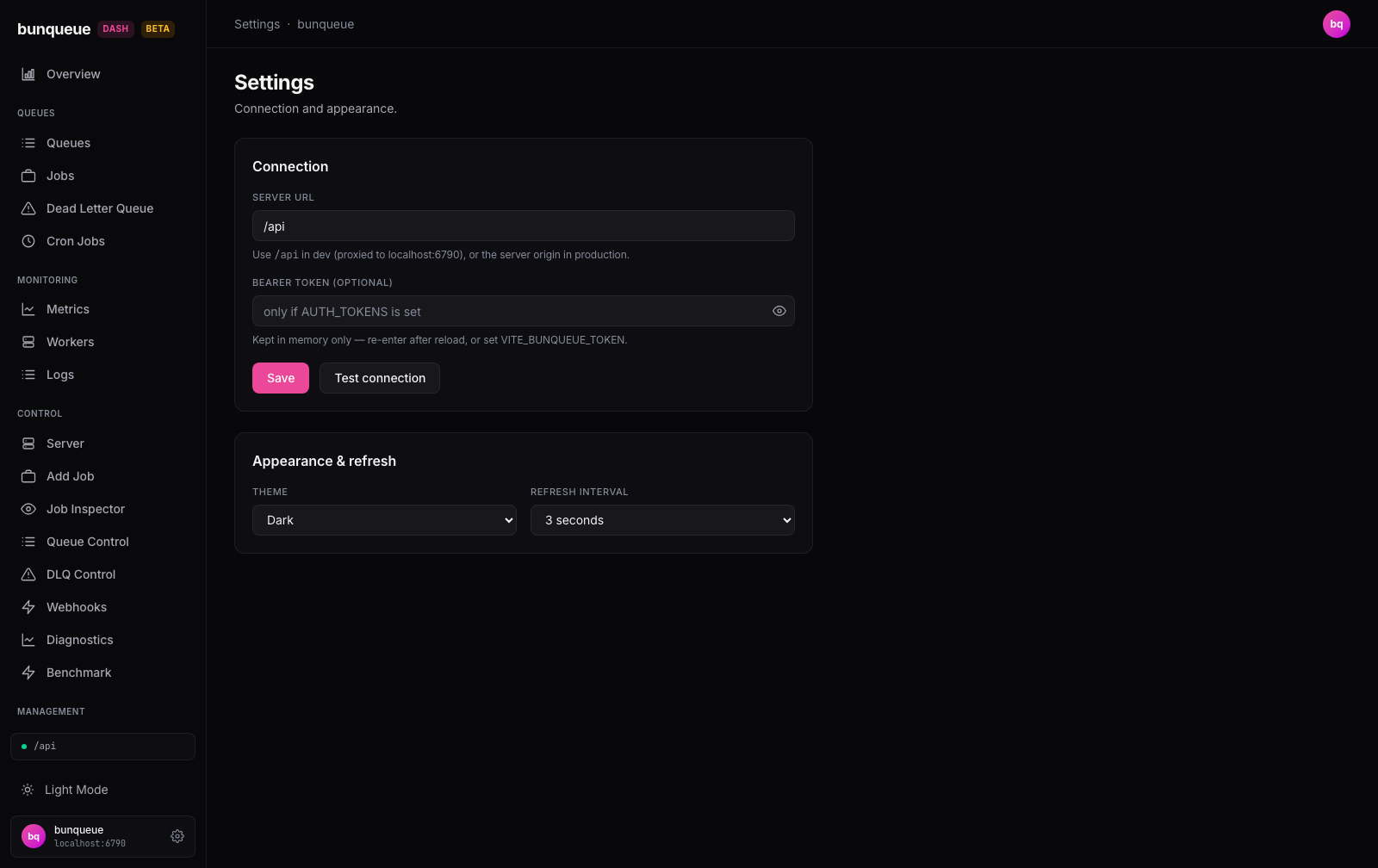
Connection profiles
| Element | Purpose |
|---|---|
| Active node | Select the broker every ordinary Dashboard page currently drives. The same selector is always available under the sidebar. |
| Add node / Remove | Create a profile (up to 32) or remove the selected one. The final profile cannot be removed. |
| Node name | Human-readable fleet identity, for example broker-eu-1. |
| Server URL | Bunqueue HTTP API, such as /api or https://broker-1.example/api. |
| Control agent URL | The agent paired with this exact broker, such as /agent or https://broker-1.example/agent. |
| Bearer token | Optional Bunqueue/bridge server credential for this profile only. |
| Agent token | Independent AGENT_TOKEN for this profile's control agent. It is never sent to Bunqueue's HTTP API. |
Click Save to validate and apply the complete draft atomically. Invalid, credential-bearing, protocol-relative, query-bearing, fragment-bearing, or non-HTTP(S) targets fail closed. Relative mount paths such as /api and /agent are supported.
Test connection probes the Bunqueue /health endpoint currently typed in the form and checks its complete health/version shape. Test agent probes the typed /control/status target and checks its lifecycle response. Both use the unsaved draft credentials, have a ten-second deadline, and are cancelled when the draft, profile, or page changes.
Switching the active profile changes the server URL, agent URL, and both token scopes in one state transition. Every poller, live stream, Flow/Workflow/Queue adapter, Database/S3 request, benchmark, alert read, and Copilot command follows the new identity. In-flight work is aborted or sequence-discarded, so rows from one node cannot remain actionable against another.
Three brokers on PostgreSQL
Create three profiles and pair each Bunqueue API with its own agent. Configure all brokers with the same BUNQUEUE_POSTGRES_URL and BUNQUEUE_POSTGRES_NAMESPACE, then open Fleet. Fleet verifies the topology and lets you operate any node without first making it active.
PostgreSQL shares queue state; it does not make process lifecycle, process logs, in-memory webhooks, or the agent's Workflow Engine SQLite store global. The Fleet guide lists every shared and node-local boundary.
Appearance and refresh
- Theme switches between Dark and Light immediately and persists.
- Refresh interval controls ordinary polling at 1, 2, 3, 5, or 10 seconds. Feature-specific intervals still apply where documented (Fleet uses 10s, alerts use 15s, and the throughput sampler uses 1s).
Persistence and security
- Profile names, canonical server/agent URLs, active profile id, theme, and refresh interval persist in browser storage.
- Server and agent tokens are stored only in module memory, isolated by profile, never serialized, and erased on reload or tab close.
- Legacy v1-v3 connection blobs are sanitized into schema v4 and immediately rewritten without legacy token fields or unsafe authorities.
- A blocked/full browser store does not lose the live edit: Settings reports that it was saved for this session only.
- Fleet probing applies each inactive profile's own credentials directly and never temporarily retargets the active Dashboard.
Test before saving
Both connection tests use the fields currently typed in the form. This lets you verify a new broker and its agent before applying the pair globally.