
S3 Backup
The S3 Backup screen configures and operates Bunqueue 2.9.4's official backup implementation. It supports AWS S3 and compatible providers such as R2, MinIO, DigitalOcean Spaces, and custom endpoints.
Where: open /s3 from the sidebar.
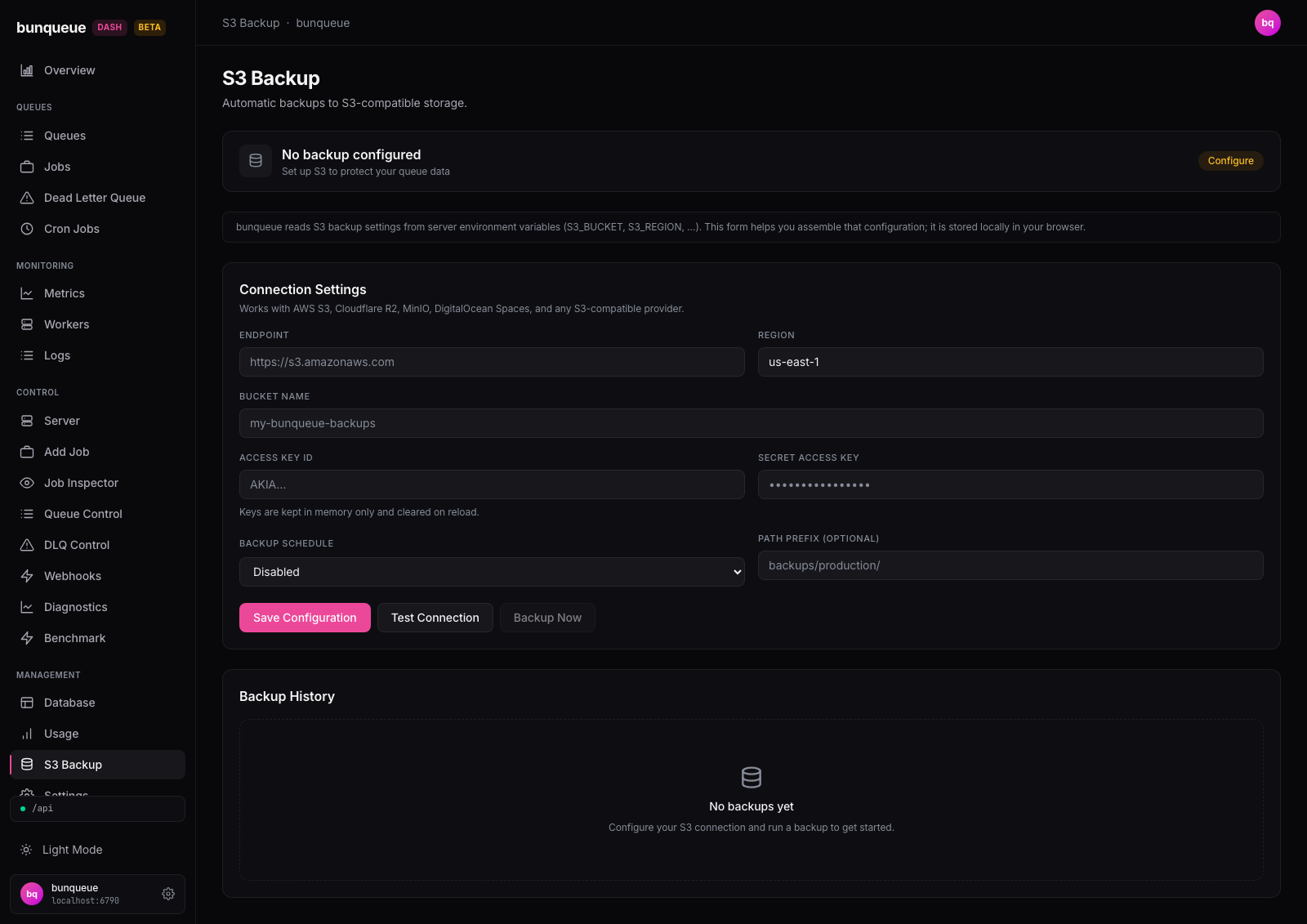
Configure
The form builds the exact environment accepted by Bunqueue:
| Field | What it's for |
|---|---|
| Endpoint | Your provider's S3 URL (e.g. https://s3.amazonaws.com). |
| Region | The bucket's region (defaults to us-east-1). |
| Bucket name | The target bucket, this field also drives the green/amber badge. |
| Access key ID | Your S3 access key. |
| Secret access key | Your S3 secret, shown masked. |
| Backup schedule | Disabled, every 6 hours, every 12 hours, or every 24 hours. |
| Path prefix (optional) | A folder prefix inside the bucket, such as backups/production/. |
| Backups to retain | Number of remote snapshots retained by scheduled cleanup. |
| Addressing style | Path-style or virtual-hosted bucket addressing. |
Apply configuration writes only the whitelisted S3_* keys into the local agent's managed server configuration. It preserves unrelated environment variables and requires confirmation. Restart the managed server before relying on the periodic scheduler. The status panel describes the configured values; its enablement badge alone does not prove a running process has reloaded them.
The non-secret draft is stored in the browser. Access key, secret, and session token remain session-only and are never written to local storage.
Operate
The Live backup operations panel invokes the exact CLI shipped by the installed Bunqueue 2.9.4 dependency, with the managed dataPath and S3 environment:
- Status reports scheduler enablement, bucket, endpoint, interval, and retention.
- Refresh lists real remote backup objects with key, size, and timestamp.
- Backup now creates a transactionally consistent snapshot after confirmation.
- Restore is available only while the managed Bunqueue server is stopped. You must type
RESTORE; the request also carries the exact database path/existence/size/WAL/mtime snapshot shown at confirmation time. If the database changes before the command runs, the agent rejects it and names what changed. The-shmfile is not compared: it is SQLite's shared-memory index, which appears and disappears as connections open and close.
Only one backup command can run at a time. Child output is bounded, execution has a timeout, and the agent never invokes a shell. A remote dashboard target, unknown environment key, malformed object key, running-server restore, or stale database confirmation fails closed.
Local agent boundary
These operations intentionally exist only through the dashboard control agent, which manages the database and process lifecycle. A static GitHub Pages demo or a dashboard pointed at an arbitrary remote Bunqueue server cannot perform local backup commands. Configure agent authentication before exposing it through a trusted proxy.
Under the hood (for developers)
- Agent endpoints are
GET /backup/status,GET /backup/list, andPOST/backup/configure,/backup/now,/backup/restore. - All routes require a
targetthat matches the server managed by the agent. - The official Bunqueue CLI JSON envelope is validated before it reaches React.
- A read-only classic environment reference remains at
/s3-classic; prefer/s3for operational use.