
Job Inspector
Look up any single job from one screen: inspect its data, result, error, logs and history, edit eligible fields, and run only the actions authorized by both its state and the v2.9.3 atomicity policy.
Where: open /job from the sidebar.
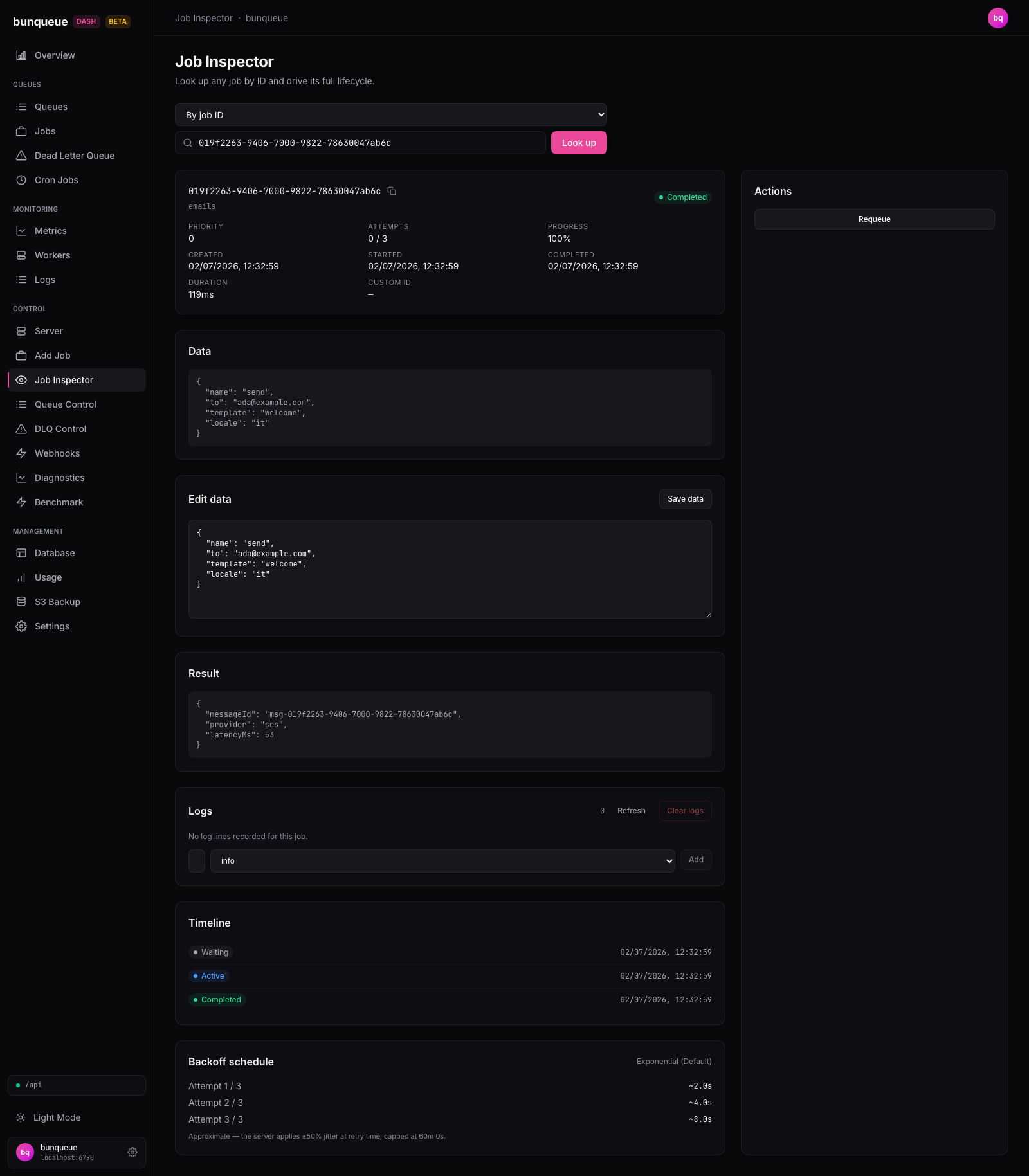
What you'll see
At the top there's always a lookup bar: a mode dropdown (By job ID / By custom ID), a search box, and a Look up button. Below it, a single status line shows the result of your last action, green for success, red for failure.
Once a job is loaded, the screen splits into two: a wide left column with detail cards, and a narrow Actions rail on the right.
The overview card at the top summarizes the job:
| Element | What it tells you |
|---|---|
| Job ID | The job's internal ID, with a copy button. |
| Queue | The queue this job belongs to. |
| Status badge | The job's current state, color-coded. |
| Priority | The job's priority number, shown as-is. |
| Attempts | How many times it has run vs. its max (e.g. 0 / 3). |
| Progress | Reported progress, as a percentage. |
| Created / Started / Completed | Local timestamps for each stage (blank until reached). |
| Duration | How long the run took, once it has finished. |
| Custom ID | Your own / idempotency ID, if the job has one (with a copy button). |
The other cards appear depending on the job:
| Card | What it shows |
|---|---|
| Data | The job's payload as formatted JSON; editable only while a non-Flow job is waiting, prioritized, or delayed. |
| Result | The stored return value, only for completed jobs. |
| Error | The last error message and full stack trace, only for failed jobs. |
| Logs | The job's log lines, with controls to refresh, clear, and add lines. |
| Child values | Resolved return values from a flow job's children, only for parent jobs. |
| Timeline | The job's state history: enqueued, started, finished, and any retries. |
| Backoff | A preview of when the remaining retries would run. |
What you can do
Look up a job
- Pick By job ID or By custom ID in the dropdown.
- Type the ID and press Enter (or click Look up).
- The job loads and the page URL updates so you can bookmark or share a direct link to it.
Every job ID elsewhere in the dashboard (Jobs, DLQ, Activity) links straight to this screen, so you rarely have to type an ID by hand.
Edit the payload
- Change the JSON in the Data card when Save data is available.
- Click Save data. Valid JSON is saved and the job reloads; invalid JSON shows an inline message and nothing is sent.
Flow members are always read-only. Bunqueue v2.9.3 replaces the entire payload on update, while FlowProducer stores parent/child topology in reserved payload keys; allowing an ordinary edit would make the flow unreadable. Jobs that have started processing or left the runnable queue are read-only as well.
Run an action, the Actions rail only shows the actions that are valid for the job's current state. Depending on state, you may see:
| Action | What it does |
|---|---|
| Promote (run now) | Pulls a delayed job forward to run immediately. |
| Set priority | Sets a new priority number. |
| Set delay | Sets a new delay in milliseconds. |
| Set progress | Updates progress for an active job without moving its state. |
A failed job instead shows an unavailable-DLQ-retry notice. A completed job shows an unavailable-requeue notice; neither state exposes a mutation button.
Work with logs, use Refresh to reload the lines, type a message and pick a level (info / warn / error) then Add to append one, or Clear logs to wipe them all.
See child values, on a flow parent, click Show to load and view the resolved return values of its children.
Unsafe state changes fail closed
Bunqueue cannot stop worker code already processing an active job, so the inspector offers only progress there. Cancel/delete/discard is unavailable in every state because v2.9.3 has no reverse-dependency check or expected-state/flow-atomic Discard operation. DLQ retry is unavailable because the separate GET + POST has no atomic generation/state/topology precondition; completed requeue is unavailable because retryCompleted does not restore dependency registration/flow order. Clear logs remains destructive and asks for confirmation.
Good to know
- Actions are state-aware and contract-aware. Only delayed jobs can be promoted, only active jobs expose progress, and only runnable queued states expose priority/delay. Failed and completed jobs expose policy notices, not retry/requeue controls.
- Flow data is protected. The inspector detects public parent/children links and Bunqueue's reserved flow keys and never offers the full-payload data write for those jobs.
- Backoff times are approximate. The retry schedule is a preview and doesn't include the random jitter the server adds at retry time (up to ±50%, or ±20% for fixed backoff), so read the numbers as "about". "exponential (default)" just means the job uses standard backoff, not that it has none.
- Timeline keeps the last 20 entries. Very retry-heavy jobs only show their most recent transitions; older attempts (and the errors attached to them) drop off.
- Completed-job requeue is not available. The upstream operation resets a run without reconstructing dependency registration and original flow order.
- The result is fetched on demand. A completed job with nothing stored shows "No result stored for this job." rather than an error.
- Rapid lookups are safe. If you hammer Enter, the newest lookup always wins, a slow earlier response can't overwrite it.
- This is the modern inspector. The classic Jobs and DLQ views have separate, documented quirks. If something looks off, check Known issues.
Under the hood (for developers)
- Uses the shape-verified
bqclient throughout (never the legacyapi). - Lookup calls
GET /jobs/:idorGET /jobs/custom/:customId; a completed job also fetchesGET /jobs/:id/result. Logs useGET/POST/DELETE /jobs/:id/logs; children useGET /jobs/:id/children(lazily, on expand). - Enabled state changes map to
POST /jobs/:id/promote,PUT /jobs/:id/data | priority | delayandPOST /jobs/:id/progress;/datais exposed only for runnable non-Flow jobs. Delete, Discard, active move/fail/retry, every DLQ retry and completed-job requeue are intentionally absent. - No polling or SSE. It fetches once per lookup, then re-fetches only after an action, a Logs refresh, or expanding child values. Deep links (
/job?id=<id>) auto-load on open.