
Cron Jobs
This screen lets you set up jobs that run on a repeating schedule, then see them all in one place.
Where: open /cron from the sidebar.
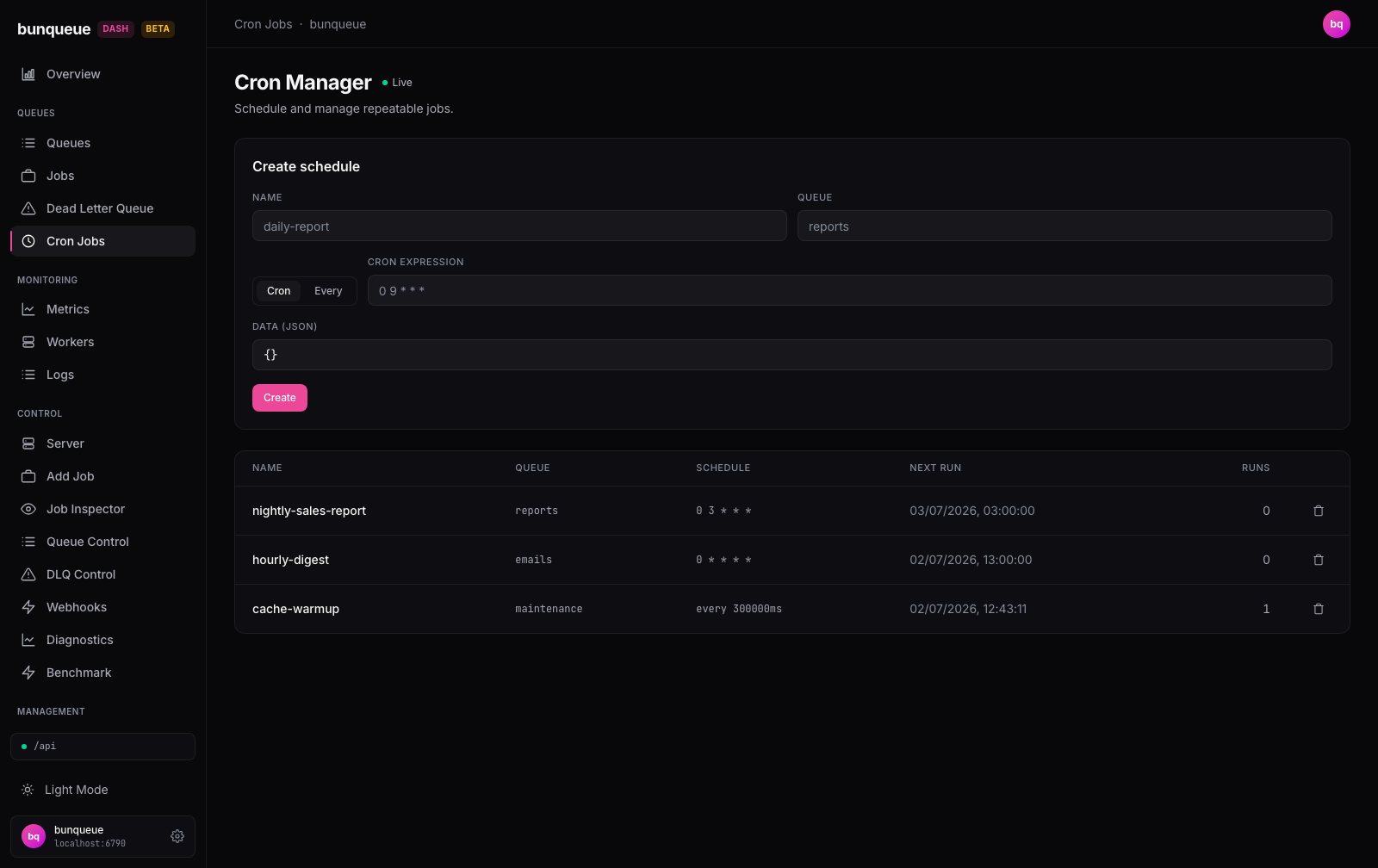
What you'll see
At the top is a Create schedule via upstream upsert card. Below it is a table listing every schedule already registered on the server, 15 rows per page. A live indicator shows the list is refreshing on its own.
Each row is one schedule:
| Column | What it tells you |
|---|---|
| Name | The schedule's unique name. |
| Queue | The queue that receives a job every time the schedule fires. |
| Schedule | When it fires, a cron expression like 0 9 * * *, or every <N>ms for an interval schedule. |
| Next Run | The local date and time of the next run. |
| Runs | How many times this schedule has fired so far. |
Each row also has a trash icon at the end for deleting that schedule.
What you can do
Submit a schedule upsert, fill in the form and click Submit upsert:
- Enter a Name (for example
daily-report) and a Queue (for examplereports). Both are required. - Set the Spawned job name workers will receive. It defaults to
defaultand is separate from schedule data. - Pick how it repeats with the mode toggle:
- cron, enter a Cron expression (for example
0 9 * * *or0 */10 * * * *with leading seconds). - every, enter an interval in milliseconds (a whole number greater than 0).
- cron, enter a Cron expression (for example
- Optionally set Data (JSON), the payload attached to every job this schedule creates. It must be valid JSON; leave it as
{}if you don't need one. - Open Advanced options for timezone/priority/execution limits, overlap and restart policy, cron deduplication (
ttl/extend/replace), and spawned-job retry, timeout, delay, stall timeout, and removal policy. - Click Submit upsert. The confirmation explicitly asks you to authorize last-writer-wins behavior. On an exact name/queue acknowledgement the form clears and a green Cron upsert acknowledged badge appears. This is an acknowledgement, not proof that no concurrent writer replaced it afterward.
The button is disabled while it's working, so a fast double-click can't create the same schedule twice. Creation also re-fetches the cron list immediately before POST and fails closed if the name now exists.
Upstream creation is not atomic
POST /crons is an upsert in Bunqueue v2.9.3 and has no create-only or version precondition. The dashboard refuses a name already observed and rechecks immediately before POST, but a simultaneous client can still race between that GET and POST. The UI never claims atomic creation; use a globally unique name and continue only when last-writer-wins is acceptable.
Delete a schedule, click the trash icon on its row.
WARNING
Deleting asks you to confirm first, then removes the schedule permanently. If a delete fails, the reason is shown in a red banner above the form rather than passing silently.
Good to know
- No editing or pausing. The form refuses an already observed name; delete it, wait for refresh, then submit a replacement upsert. The unavoidable absent-name race remains documented above.
- Intervals are in milliseconds.
every 300000msis 5 minutes, it's easy to type seconds by mistake. The field only checks that the number is a positive whole number, not that the size is sensible. - Cron syntax follows Bunqueue 2.9 and Bun 1.4. The dashboard accepts standard five-field expressions (including Bun's optional leading
+on numeric values), six fields with leading seconds, and the official@yearly,@annually,@monthly,@weekly,@daily,@midnight, and@hourlyshortcuts. Seven-field years and Croner-onlyL,W,#, and?extensions are rejected before submission. - Upgrade old persisted schedules first. A Croner-only definition created before Bunqueue 2.9 can make the broker fail closed at startup. Update or remove it while still running Bunqueue 2.8, then upgrade.
- Switches mirror the submitted value. Overlap and missed-run defaults are initialized to the v2.9.3 defaults and every switch is sent explicitly, so an off switch cannot silently fall back to an on server default.
- You may reach this screen from more than one link. An older, list-and-delete-only version of this page also exists. The sidebar's Cron Jobs entry always opens this full version. See Known issues for details.
Under the hood (for developers)
- Uses the
bqclient, not the legacyapi. - List:
GET /crons(a flat{ ok, crons[] }response), polled on the global refresh interval (default 3s, floored at 500ms), one request in flight at a time. - Create:
POST /cronswith{ name, queue, data, schedule? | repeatEvery?, timezone?, priority?, maxLimit?, dedup?, jobOptions?, … }. - Delete:
DELETE /crons/:name. - A logically-failed create or delete (HTTP 200 with
ok: false) surfaces as an error rather than a silent no-op.