
Queues
See every queue on your server at a glance, check how each one is doing, and pause or resume any of them in one click.
Where: open /queues from the sidebar.
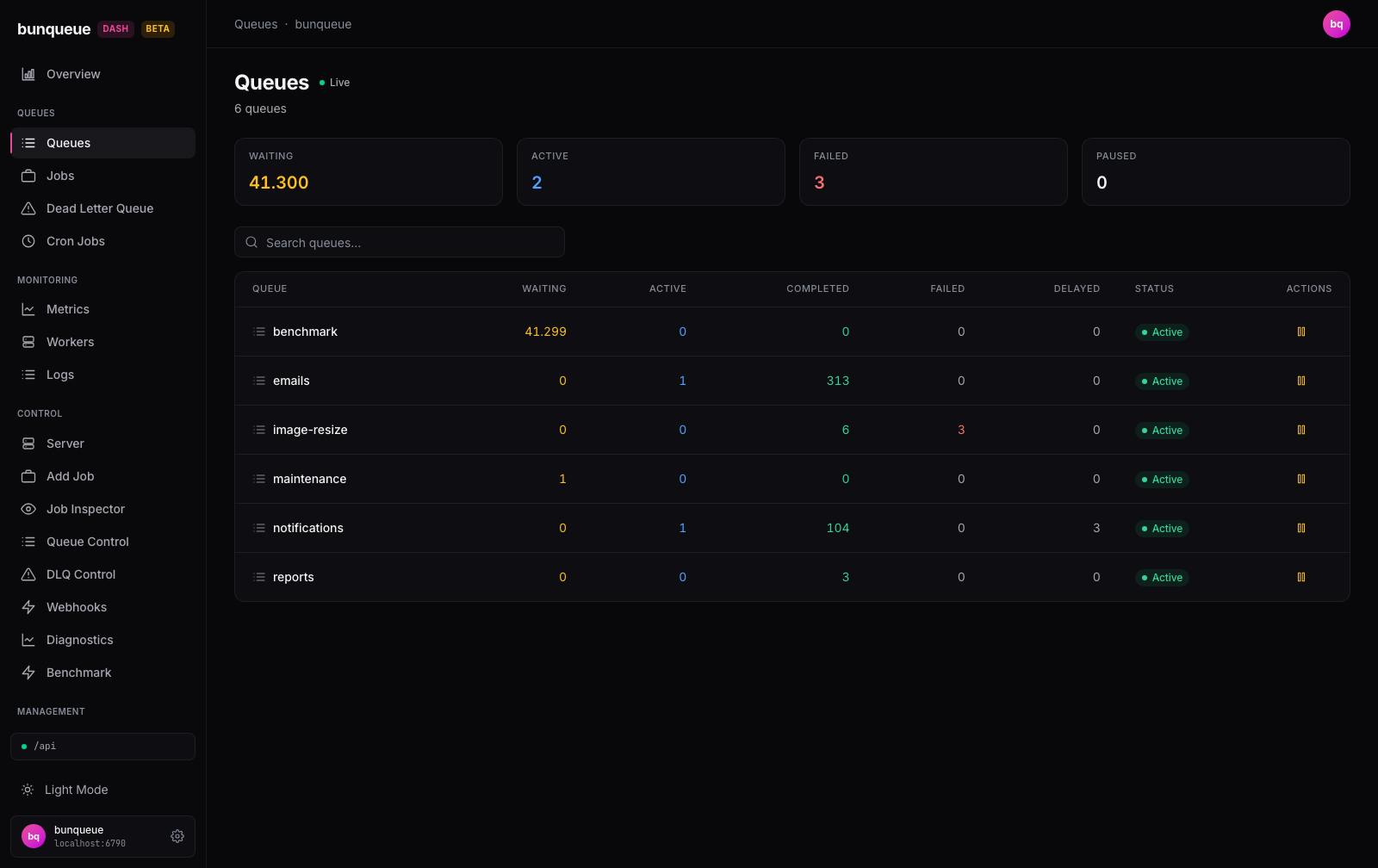
What you'll see
At the top, four summary cards give you the totals across your whole server. Below them, a searchable table lists one row per queue with its live job counts and a status pill. A Live badge in the header tells you the numbers keep refreshing on their own.
The four summary cards:
| Card | What it tells you |
|---|---|
| Waiting | Total jobs enqueued and waiting for a worker, across all queues |
| Active | Total jobs being processed right now |
| Failed | Total jobs that ran out of retries (turns red when above zero) |
| Paused | How many queues are currently paused (a queue count, not a job count) |
Each row in the table:
| Column | What it tells you |
|---|---|
| Queue | The queue name, click it to open that queue |
| Waiting | Jobs waiting for a worker |
| Active | Jobs being processed now |
| Completed | Jobs that finished successfully |
| Failed | Jobs that exhausted their retries (red when above zero) |
| Delayed | Jobs scheduled to run later |
| Status | A green Active or orange Paused pill |
| Actions | The pause/resume button, plus an arrow into the queue |
TIP
The four summary cards always add up every queue, even while you're searching, the totals stay put as you type, so they always reflect the full fleet.
What you can do
- Pause a queue. Click the amber pause icon on a row. That queue stops handing work to workers; its button is briefly disabled, the table refreshes, and a confirmation line appears above it.
- Resume a queue. Click the green play icon on a paused row. Work starts flowing again, with the same quick confirmation.
- Search. Type in the filter box to narrow the table to queues whose name contains what you typed. It's case-insensitive.
- Open a queue. Click a row (or the queue name) to jump into that queue's detail view.
- Page through queues. Use the pager below the table, it shows 15 queues per page.
- Recover from an outage. If the server drops, a banner appears with a Retry button that reconnects.
After each pause or resume you'll see a one-line result above the table: a green confirmation (for example, payments paused ✓) on success, or a red message explaining what went wrong. Only the row you clicked is disabled while it's working, every other row stays usable.
WARNING
Pause and resume act immediately, there's no confirmation prompt. A single mis-click can pause a live queue, so check the row's Status pill afterward. Flow-destructive Drain/Clean/Obliterate controls are visible but disabled on the detail/control pages because v2.9.3 cannot inspect reverse dependencies.
Good to know
- The summary cards ignore your search. They're fleet-wide totals and won't change as you filter, that's intentional, but easy to misread.
- The Paused card counts queues, not jobs. It tells you how many queues are paused, not how many jobs are held.
- Numbers are as of the last refresh. With the default few-seconds cadence, and refreshing paused while the browser tab is in the background, a busy queue can lag reality by a moment. The Live badge means the data is polled, not streamed instantly.
- Empty states are explicit. With no queues yet you'll see "No queues yet."; a search that matches nothing shows "No queues match your search."
- Your place is kept. If a filter shrinks the list past your current page, you're moved to the last valid page rather than losing your spot.
- No known issues are specific to this screen. See Known issues for the current, honest list.
Under the hood (for developers)
- Loads every queue with its counts in a single
GET /queues/summarycall, no per-queue fan-out. Search, sort, and pagination are all client-side. - Pause/resume post to
POST /queues/:q/pauseandPOST /queues/:q/resume; a logical{ ok: false }surfaces as the red error line. - Polls at the global refresh interval from Settings (default 3000 ms, floored at 500 ms), one request at a time, suspended while the tab is hidden.
- Uses the
bqclient throughout.